
My kid’s laptop or game console won’t connect to wifi but my phone connects fine, why?
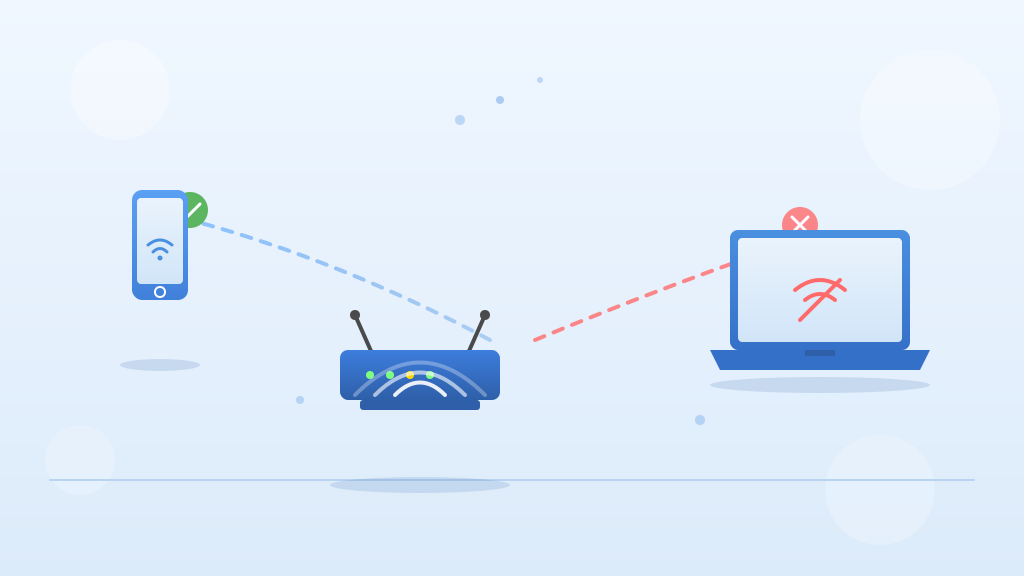
Nine times out of ten, your kid’s device is either holding onto a bad network password or its wireless driver got its wires crossed. Phones are weirdly good at shaking off minor router hiccups, while laptops and consoles will just stubbornly refuse to connect.
Quick things to check first
- Have your kid completely “forget” the wifi network on their device, then type the password back in from scratch. It’s the classic “turn it off and back on again” for wifi.
- Double-check that you aren’t accidentally mixing up uppercase letters or trailing spaces when you type in the password.
- If it’s a laptop, plug it straight into the router with an ethernet cable. If the internet works perfectly wired, you know for a fact the laptop itself isn’t broken—it’s just a wireless communication issue.
- Restart the kid’s device and reboot your router by unplugging it for 30 seconds. Sometimes the router is just ignoring that specific device and needs a fresh start.
If that didn’t fix it
- On a Windows laptop, click the start button and type “device manager” into the search bar, then hit Enter. Expand the “network adapters” section, find the wifi adapter, right-click it, and select “Uninstall device.” Restart the laptop and Windows will automatically reinstall a fresh copy of the driver, which usually clears up stubborn connection refusals.
- While still in Device Manager, right-click that wifi adapter, select “Properties,” and look for an “Advanced” tab. See if there’s an option for a “Dynamic MAC Address” and turn it off. Sometimes routers get confused by a constantly changing MAC address and block the connection.
- If the kid is using a cheap laptop or an older console, it might only support the 2.4GHz wifi band. Log into your router’s settings and make sure your 2.4GHz and 5GHz bands have different names, then try forcing the kid’s device to connect specifically to the 2.4GHz one.
When to call a pro
If you plug the laptop directly into the router with an ethernet cable and it still says “connected, no internet,” or if the laptop’s wifi adapter is completely missing from the Device Manager list, stop right there. That means you’ve got a hardware failure or a deep Windows system corruption, and it’s time to let a pro take a look.
Pro tip
When setting up your home wifi, always give your 2.4GHz and 5GHz networks different names so older devices don’t get confused trying to connect to a band they can’t reach. Also, every few months, take five minutes to check your laptop manufacturer’s website for wifi driver updates—keeping those fresh prevents a lot of random connection dropouts.