Everything on my screen looks stretched or the wrong size after an update, how do I fix it?
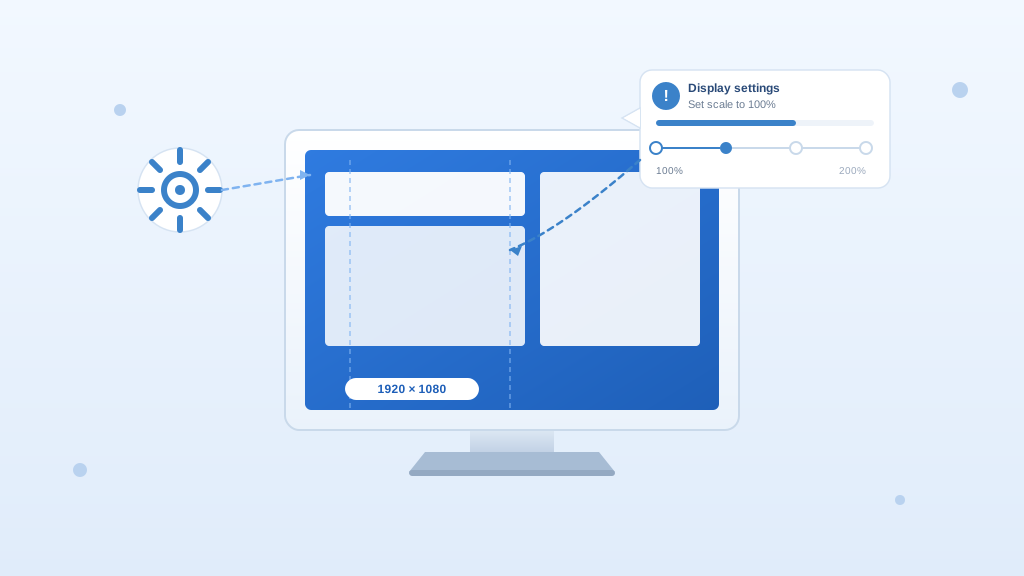
Nine times out of ten, a Windows update messes up your display resolution, making everything look like a funhouse mirror. We just need to go into your display settings and tell the computer to use the correct size and aspect ratio again.
Quick things to check first
- Restart your computer. I know, it’s the classic “have you tried turning it off” line, but updates often finish tweaking display drivers during a fresh reboot.
- Check your monitor physically. Sometimes a cable gets slightly yanked loose during an office cleaning, which causes the screen to drop to a weird, stretched fallback mode.
- Look for a physical “Auto” or “Menu” button right on the edge of your monitor bezel. Push it and let the screen recalibrate itself to the incoming signal.
If that didn’t fix it
- Right-click out on an empty spot on your desktop and pick “Display settings.” Look for the “Display resolution” dropdown and change it to the one that says “Recommended” next to it. If that doesn’t fix it, try the other options in that list until it looks normal again (https://www.quora.com/After-upgrading-to-Windows-10-my-screen-is-stretched-and-distorted-How-do-I-fix-this, https://www.youtube.com/watch?v=FgNKU_h4UIQ).
- While you’re still in Display settings, scroll down to the “Scale” section. Make sure it’s set to 100% (or whatever the recommended default is for your screen). Updates love to bump this up to 150% by mistake, which throws the whole aspect ratio out of whack (https://recoverit.wondershare.com/partition-tips/fix-stretched-screen-display-problem.html).
- Check your multi-monitor setup if you have one. A wrong orientation setting or a weird arrangement left over from plugging in a projector can make your main screen act all stretched out and distorted (https://recoverit.wondershare.com/partition-tips/fix-stretched-screen-display-problem.html).
- Open Device Manager (just type it into your taskbar search), expand the “Display adapters” section, right-click your graphics card, and select “Update driver.” Windows updates sometimes install a generic driver that totally ignores your actual hardware (https://www.youtube.com/watch?v=FgNKU_h4UIQ).
- Check your graphics card’s control panel (like NVIDIA Control Panel or AMD Radeon Settings). Sometimes the card itself tries to override Windows and forces the monitor to pretend it’s wider than it actually is, so you have to reset the aspect ratio settings in there (https://www.reddit.com/r/pcmasterrace/comments/j2n9i3/help_screen_works_fine_on_one_monitor_i_have_but/).
- If you’re seeing this on a Smart TV instead of a computer monitor, grab your TV remote. You need to go into the TV’s picture settings and change the aspect ratio from “Stretch” or “Zoom” back to “16:9” or “Just Scan” (https://www.youtube.com/watch?v=Gzmv4ONwHHM&vl=en).
- WARNING: Only do this if you are comfortable messing with system files, as deleting the wrong registry key can stop your computer from booting. Open the Registry Editor, navigate to HKEY_LOCAL_MACHINE\SYSTEM\CurrentControlSet\Control\GraphicsDrivers, and delete the “Configuration” folder to force Windows to forget the broken display setup and rebuild it from scratch. Do not attempt this if you aren’t sure what you’re doing.
When to call a pro
If you go to your Display Settings and the dropdown menu for resolution is completely grayed out, or if your screen has permanent vertical lines, flickering colors, or weird artifacts that don’t go away when you boot into the BIOS screen, stop. That means your graphics card or monitor is physically failing, and we need to swap out the hardware.
Pro tip
Before you run any big Windows updates, go to your graphics card manufacturer’s website and download their latest drivers directly. Windows is notoriously bad at guessing which display driver you need, so keeping your own drivers updated manually prevents the computer from installing a broken one during a system update.
Sources
- After upgrading to Windows 10, my screen is stretched and distorted …
- How To Fix a Stretched Screen Display Issue on Windows 11
- Stretched Screen on Windows 10? Fix Display Resolution and Scaling
- Help! Screen works fine on one monitor I have, but gets all stretched …
- Smart TV Screen Stretched? Easy Fix for Perfect Display (All Brands)